
Hi everyone. Think about the apps you used today: your bank, your messaging app, food delivery, public transport, your digital wallet. You probably unlocked your phone dozens of times before turning on a computer. For a huge number of people the phone is the only way they use the internet, which makes mobile apps some of the most widely used pieces of software out there and, at the same time, some of the hardest to test.
If you come from web testing, a lot of the mobile world will feel familiar: test cases, bug reports, regressions, automation. But it also has plenty of quirks that, if you don't know them, let bugs slip through that users find within five minutes. A phone call that comes in halfway through a payment, a low-end phone that runs out of memory, a network that switches from Wi-Fi to 4G in the elevator, a camera permission the user denied by accident.
In this article I'll walk you through everything you need to get started with mobile device testing: what makes it different, how to choose which devices to test on, when to use emulators and when to use real devices, which types of testing you can't skip, how automation works, which tools are worth knowing and how to report mobile bugs so the development team can reproduce them. At the end I'll leave you a path to start practicing.
What is mobile testing?
Mobile testing (or mobile device testing) is the set of testing activities that check that an application works correctly and is usable, secure and fast on phones and tablets. It covers both apps you install from Google Play or the App Store and websites used from the phone's browser.
Put like that it sounds like any other kind of testing, and at its core it is: we still design test cases, apply techniques such as equivalence partitioning or boundary value analysis, report defects and validate acceptance criteria. The difference is the context. On mobile, software runs on a device that people carry in their pocket, that moves around, switches networks, runs low on battery, receives calls and notifications, and has a camera, GPS, sensors and a touch screen in many different sizes. All of that is part of what needs to be tested.
That's why mobile QAs like to say we don't just test an app: we test an app inside a phone inside someone's life. That shift in perspective is what separates shallow mobile testing from testing that really protects the user.
A useful fact for anyone studying for certifications: ISTQB has a dedicated certification, the Certified Tester Mobile Application Testing (CT-MAT), which organizes all these concepts very well. If you're interested, QARMY has ISTQB study material and a CT-MAT exam simulator to practice with.
Why testing on mobile is different
Before talking about techniques and tools, it helps to understand what makes the mobile world so particular. These are the factors with the biggest impact on how we test.
Fragmentation
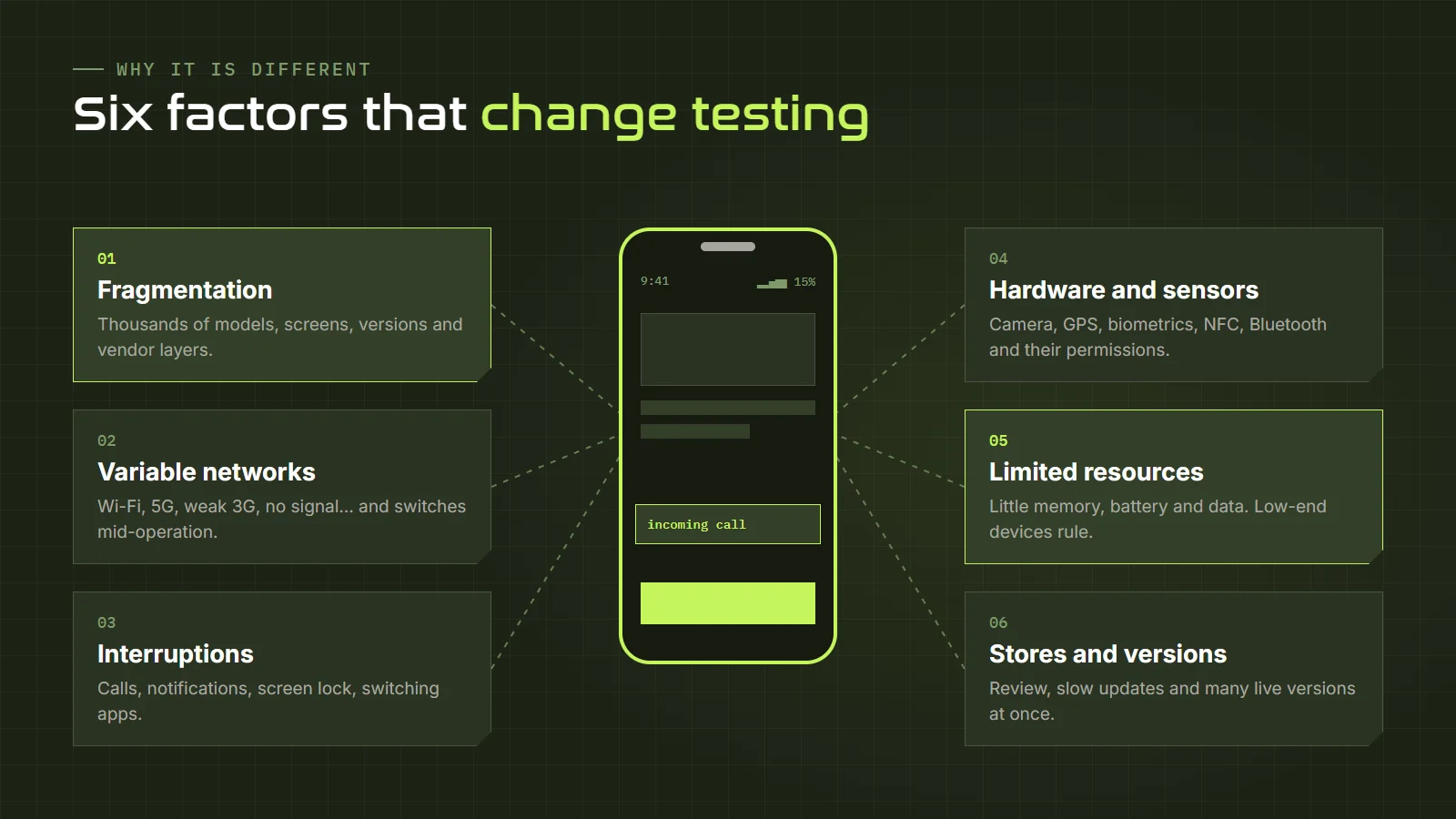
On the web we test on a handful of browsers. On mobile there are thousands of different device models, with different screen sizes, resolutions, pixel densities, processors, amounts of memory and operating system versions. On Android the problem is even bigger, because each manufacturer adds its own customization layer on top of the system: the same Android version can behave differently on a Samsung, a Motorola or a Xiaomi, especially when it comes to notifications, battery saving or permissions.
Variable networks
A mobile user might be on fast Wi-Fi, on 5G, on a poor 3G signal on the highway or completely offline. And most importantly, they can switch from one to another in the middle of an operation. An app that was only tested on the office Wi-Fi almost certainly has problems when the network gets slow or drops.
Interruptions
Incoming calls, notifications, alarms, the user locking the screen, switching apps to copy a code, rotating the phone, plugging in headphones. On a computer these things barely exist; on a phone they happen all the time, and the app has to know how to pause, save its state and come back without losing data.
Hardware and sensors
Camera, microphone, GPS, accelerometer, gyroscope, fingerprint reader, face recognition, NFC, Bluetooth. Many apps depend on one of these components, and each one has its own permissions, behaviors and possible failures.
Limited resources
A low-end phone has little memory, tight storage and a modest processor. On top of that, users care about battery life and mobile data usage. An app that runs perfectly on a flagship phone can be slow, heat up the device or crash on a cheaper one. And in many markets, a large share of users have exactly those devices.
App stores and updates
On the web, if we find a bug in production, it gets fixed and deployed in minutes. On mobile, a new version has to go through store review, and then each user decides when to update. That means many versions of our app coexist in the wild at the same time, and a bug that slips through can stay on people's phones for weeks. The cost of a mistake on mobile is higher, which is why testing before release matters even more.
Native, hybrid and web: what we are testing
Not all mobile apps are built the same way, and the type of app changes quite a lot how we test it and which tools we use. These are the three main groups:
| Type | How it's built | What to keep in mind when testing |
|---|---|---|
| Native | Built specifically for each system: Kotlin or Java for Android, Swift for iOS. | Better hardware access and better performance. Each platform has to be tested separately, because they are two different apps. |
| Cross-platform or hybrid | One codebase for both platforms, with frameworks such as Flutter or React Native, or with web containers such as Ionic. | They share logic, but can fail differently on each system. Watch out for visual components, keyboards and gestures. |
| Mobile web and PWA | Websites designed for the phone's browser. PWAs can be "installed" and work partially offline. | Responsive design, different mobile browsers, performance on slow networks and offline behavior. |
Knowing what kind of app you're looking at helps you ask better questions. If it's Flutter, for example, it's useful to know that the UI is drawn by its own engine and that some automation tools need special setup to "see" its elements. If it's mobile web, your focus will be on responsiveness, browsers and loading performance. If it's native, you probably have two development teams, two backlogs and two different sets of bugs.
A practical tip: ask the development team what technology the app is built with. It's a simple question that saves you hours of trial and error when it's time to choose tools.
Fragmentation: how to choose which devices to test on
This is probably the most frequent question in mobile testing: "how many phones do I need to test on?". The honest answer is that you'll never be able to test on all of them, so the goal isn't to cover everything but to choose well. To do that you build a device matrix: a prioritized list of device, operating system and version combinations you will test on.
Start with data
The best source for building the matrix is real data about your users. If the app is already published, the Google Play and App Store Connect consoles, and analytics tools such as Firebase, show you which devices and system versions your users have. If the app is new, you can rely on public market statistics for your country or region, and on what the business knows about the target audience.
One important detail: global data can be misleading. In many Latin American countries Android has a much higher market share than in the United States, and mid-range and low-end devices are the majority. If your audience is local, your matrix needs to reflect that.
Organize by tiers
A very practical way to build the matrix is to split it into priority tiers:
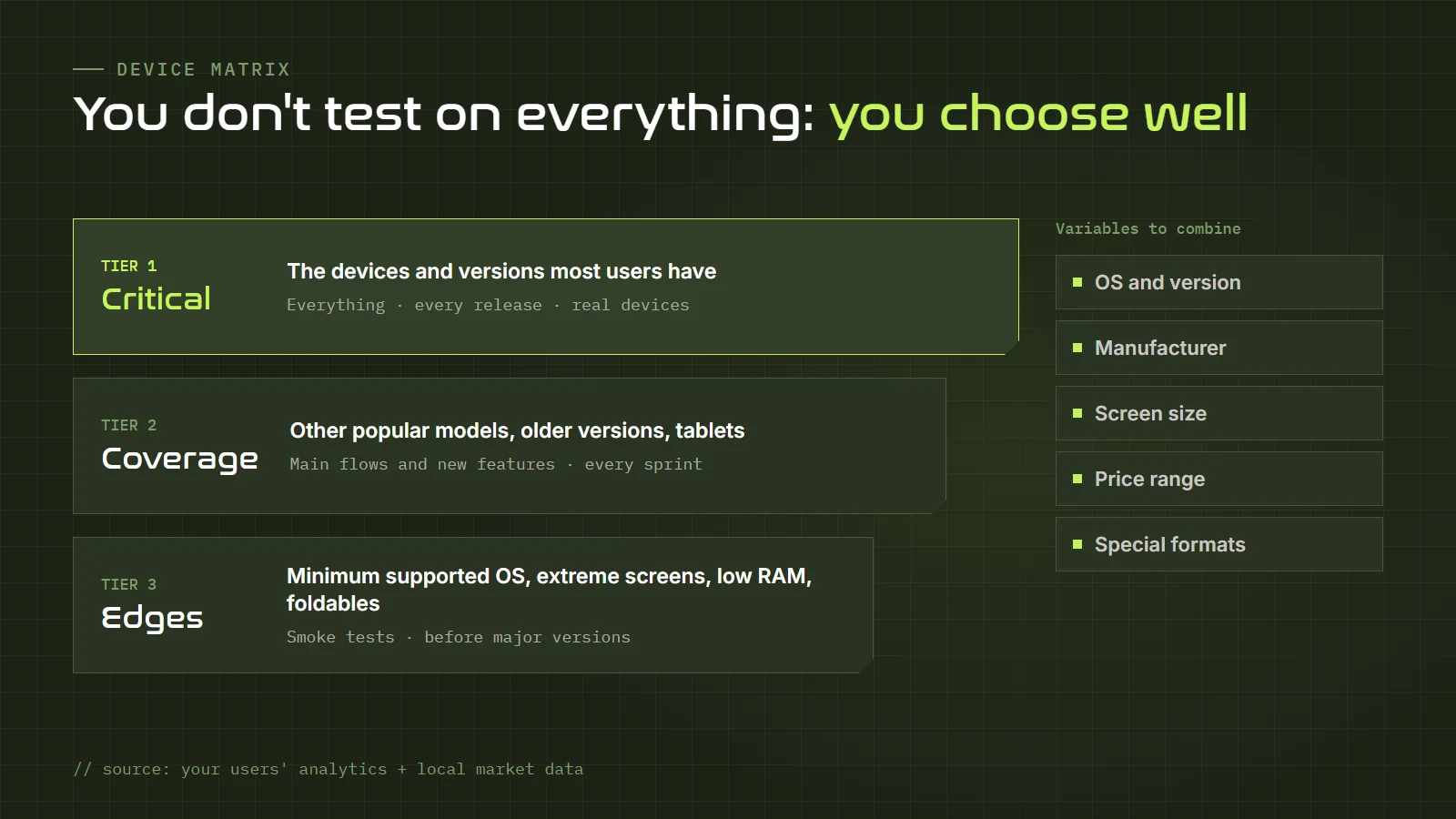
- Tier 1 (critical): the devices and versions most of your users have. Everything gets tested here, on every release, ideally on real devices.
- Tier 2 (coverage): other popular models, slightly older system versions, tablets. The main flows and new features get tested here.
- Tier 3 (edges): the oldest system you support, very small or very large screens, low-memory devices, foldables. A smoke pass happens here before major versions.
Which variables to combine
When choosing devices, try to cover variety along these dimensions:
- Operating system and version: the latest version, the previous one and the oldest one the app officially supports.
- Manufacturer: on Android, at least two or three different brands, because each customization layer has its own quirks.
- Screen size and density: a small phone, a standard one, a large one and a tablet if the app supports it.
- Price range: don't forget budget devices. They are the ones that show the most performance problems.
- Special formats: foldables, screens with a notch or punch-hole camera, dark mode, larger font sizes.
And most importantly: the matrix gets reviewed regularly. New models and system versions come out every year, and what's tier 1 today may be tier 3 tomorrow. Document it in your test plan so the whole team knows what is being tested and what is left out.
Emulators, simulators, real devices and the cloud
Once you know which devices you want to test on, the next question is how to get them. There are three main options, and in practice almost every team ends up combining them.
Emulators and simulators
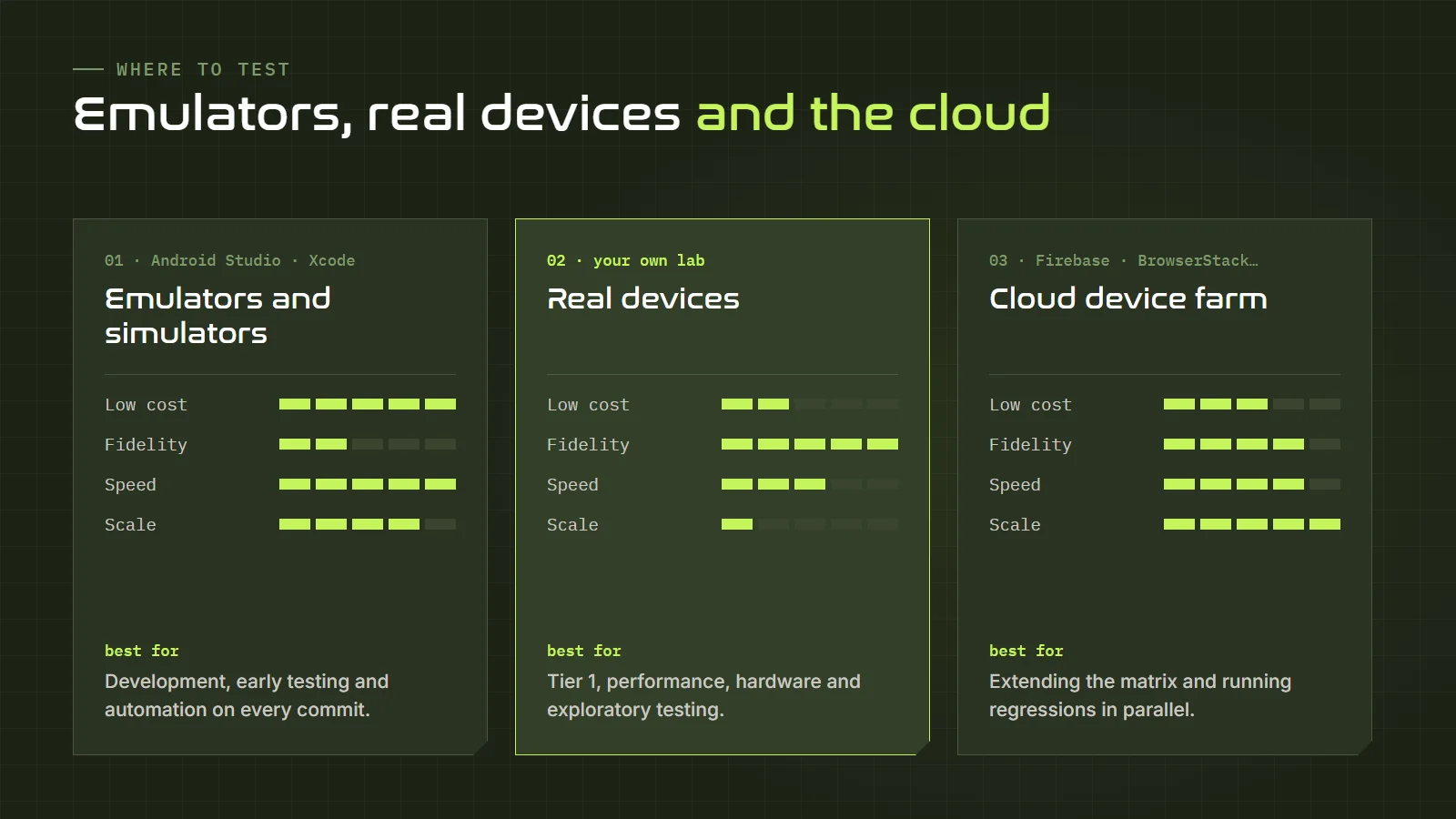
An emulator reproduces a complete device in software, hardware included. The Android emulator that ships with Android Studio is the best-known example. A simulator, like the one that comes with Xcode for iOS, imitates the system's behavior but not the hardware: it runs the app compiled for the computer. The technical difference matters, because the iOS simulator is even less faithful than an emulator when it comes to performance and hardware.
They are free, quick to start, let you switch model and version in seconds, and are ideal for development, early functional testing and automation in the pipeline. They also let you simulate GPS locations, network conditions or battery levels without leaving your chair.
Their limits are clear: they don't reflect real performance, they don't have each manufacturer's customizations, they don't reproduce the camera, sensors, Bluetooth or real interruptions well, and they don't give you the physical feel of using the app one-handed on the bus.
Real devices
Nothing replaces testing on an actual phone. It's the only way to validate real performance, battery drain, heating, the touch experience, gestures, the camera, notifications and behavior with the manufacturer's layer. The downside is cost: buying and maintaining a device lab is expensive, devices age quickly and they need managing (charging, updating, resetting, lending).
A very common practice is to keep a small lab with the tier 1 devices and cover the rest with other options.
Cloud device farms
Services such as Firebase Test Lab, BrowserStack, Sauce Labs, LambdaTest or AWS Device Farm offer remote access to hundreds of real devices hosted in their data centers. You can use them manually, controlling the phone from your browser, or run your automated tests on many devices in parallel.
They are ideal for extending matrix coverage without buying devices, for reproducing a bug a user reported on a model you don't own, and for running large regressions. They cost money (although several offer free or trial plans), have some latency when used manually and come with limitations around features like the camera or biometrics.
Which one should you use?
The most common combination is: emulators for development, early testing and automation on every commit; your own real devices for tier 1 and exploratory testing; and cloud farms to cover the rest of the matrix and the regressions before each release. What you should never do is test only on emulators and ship to production.
Types of mobile testing
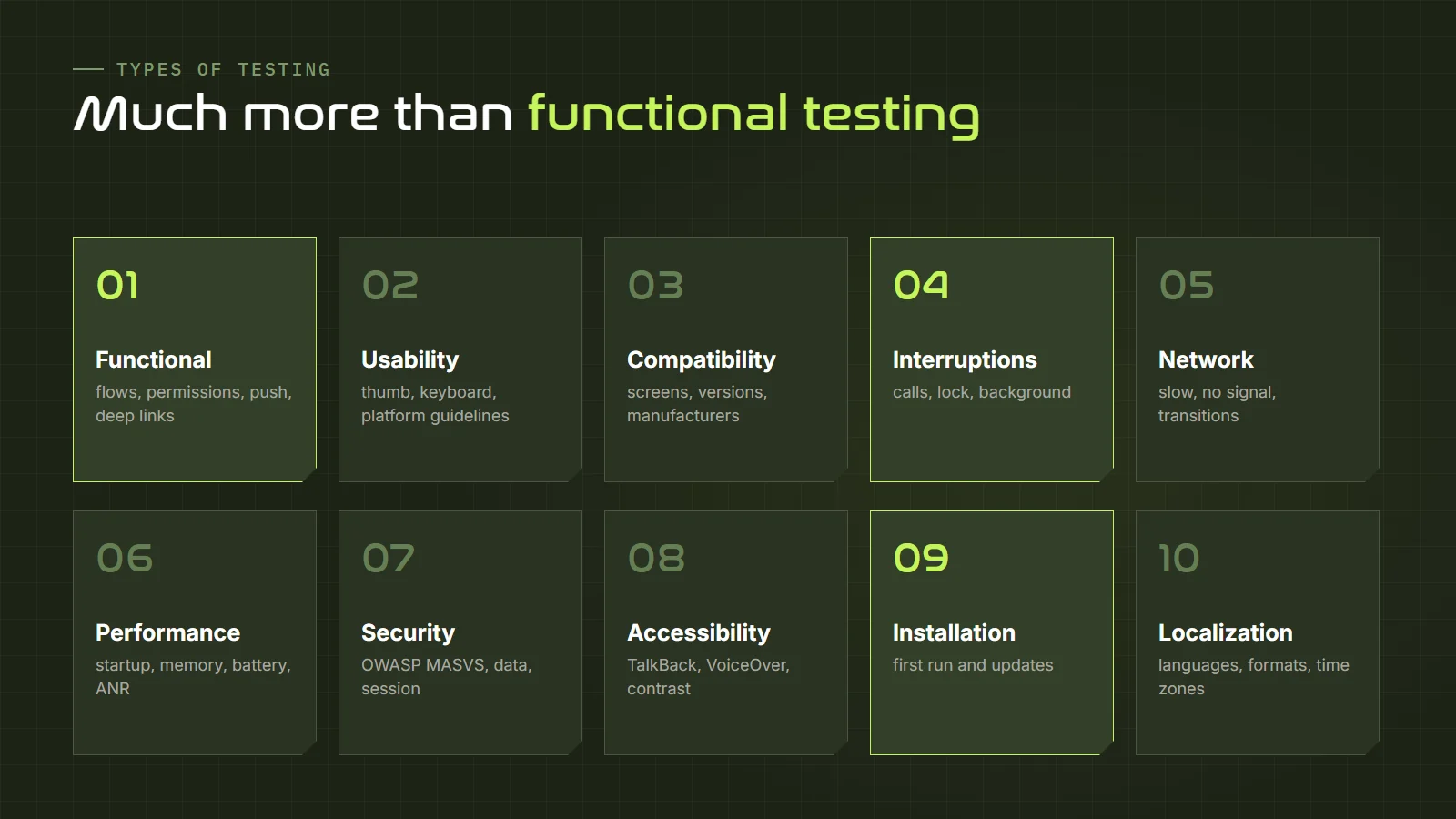
Functional tests are the foundation, but on mobile there are many other types of testing that weigh heavily on the user experience. This map summarizes the most important ones:
Functional testing
Checks that the app does what it's supposed to do: that sign-up works, that the cart adds up correctly, that the payment goes through, that data gets saved. It's the same as for any other product, plus the flows specific to mobile: permissions, push notifications, deep links, biometric login, integration with other apps (sharing, opening a PDF, picking a photo from the gallery).
Usability and user experience
On a small screen, with your thumb as the only pointer, usability problems multiply. Are the buttons big enough to tap without missing? Is the important stuff within thumb reach? Does the keyboard cover the field I'm filling in? Does the numeric keyboard show up when I'm asked for a phone number? Are error messages understandable? Nielsen's usability heuristics are an excellent tool for reviewing mobile apps with a critical eye. It's also worth knowing each platform's guidelines: Material Design for Android and Apple's Human Interface Guidelines for iOS. An iPhone user expects the app to behave like "an iPhone app", and the same goes for Android.
Compatibility
Checks that the app works well across the whole device matrix: different screens, system versions and manufacturers. This is where the classics show up: cut-off text, buttons running off the screen, distorted images, elements hidden behind the notch and features that only fail on a certain Android version.
Interruptions
Tests what happens when something interrupts the app: a call, a notification, an alarm, the screen locking, switching to another app and back, plugging in the charger, running out of battery. The app has to pause correctly and resume without losing information. These tests find a lot of bugs and are among the least performed.
Network and connectivity
Tests behavior with different network qualities, offline and during transitions. What does the user see when the network is slow? Is there a loading indicator or does the screen freeze? What happens if the connection drops in the middle of a payment? Does the operation get duplicated on retry? Does the app work offline if it's supposed to? Does it sync correctly when the network comes back? There's an API behind almost all of this, so if you want to go deeper I recommend our guides on API testing with Postman and Swagger.
Performance, battery and resources
Measures startup time, animation smoothness, response times, and memory, CPU, battery and mobile data usage. It also checks that the app doesn't crash or freeze (on Android, the infamous "app isn't responding" dialog, known as an ANR). Test especially on low-end devices and with little free storage.
Security
Reviews how the app protects data: that it doesn't store passwords or tokens in plain text on the device, that it uses encrypted connections, that it doesn't show sensitive information in the recent-apps screenshot, that sessions expire, that the permissions requested are the minimum needed and that it doesn't leak data in logs. The reference on this topic is the OWASP Mobile project, with its list of top risks (OWASP Mobile Top 10) and its verification standard (MASVS).
Accessibility
Checks that the app can be used with screen readers (TalkBack on Android, VoiceOver on iOS), with larger font sizes, with good contrast, without relying on color alone to convey information and with elements that have an accessible name. Accessibility isn't an extra: it's part of quality that affects millions of people and is already a legal requirement in many countries.
Installation, updates and uninstallation
Tests that the app installs correctly, that the first launch works, that updating from the previous version doesn't lose data or break the session, and that uninstalling doesn't leave problematic leftovers. The update test is critical and often forgotten: we test the new app installed from scratch, but real users come from the previous version, with saved data and settings.
Localization and internationalization
If the app is used in several languages or countries, you need to check translations, date, currency and number formats, longer strings that break the layout, time zones and, where relevant, right-to-left languages.
Test cases you can't skip
Besides the cases specific to each feature, there's a set of typical mobile scenarios worth always keeping at hand. You can add them as a checklist to your test case template:
Permissions
- Accept the permission the first time it's requested and check the feature works.
- Deny the permission and check the app explains why it needs it and doesn't break.
- Permanently deny the permission and check the app guides the user to settings.
- Revoke the permission from system settings while the app is open, then go back to it.
- Partial permissions: approximate instead of precise location, access to only some photos.
App lifecycle
- Send the app to the background in the middle of a form and come back: the data should still be there.
- Leave it in the background for a long time and come back: the system may have killed it to free memory.
- Rotate the screen on every view: on Android, rotation can recreate the screen and lose state.
- Force-close the app in the middle of an operation and reopen it.
Network
- Turn on airplane mode in the middle of a load or a submission.
- Switch from Wi-Fi to mobile data during an operation.
- Use the app on a very slow network (emulators and some tools let you simulate this).
- Tap a "Pay" or "Send" button twice in a row on a slow network: does the operation get duplicated?
Data entry and keyboard
- Check that each field opens the right keyboard: numeric, email, phone.
- Make sure the keyboard doesn't cover the active field or the button to continue.
- Paste text, use the system autofill and the password manager.
- Try emojis, special characters and very long strings.
Gestures and screen
- Swipe, long press, pinch to zoom, pull to refresh.
- Android back gesture or button on every screen: does it go where the user expects?
- Dark mode and larger font size.
- Split screen or multi-window, if the app supports it.
Notifications and deep links
- Receive a notification with the app open, in the background and closed.
- Tap the notification and check it takes you to the right screen.
- Open a link to the app while logged out, or without the app installed.
Other real-world scenarios
- Low battery and battery saver mode turned on.
- Little storage space available.
- Changing the device's date, time or time zone.
- Headphones or Bluetooth devices connecting and disconnecting during audio or video playback.
You don't need to run all these cases on every version. Pick the ones with the most risk for your app and rotate the rest. What matters is that they're written down and nobody depends on a QA's memory to remember them.
Mobile test automation
Automating on mobile is more challenging than on the web: environments take longer to start, devices are more varied and tests tend to be slower and flakier. That's why it's even more important to have a clear strategy for what to automate and at which level.
The pyramid on mobile
The test pyramid applies here too, and on mobile it matters even more. The base is unit tests, written by developers and running in seconds. In the middle are integration and API tests, which validate business logic without going through the UI. At the top, fewer and carefully chosen, are end-to-end UI tests, which walk through the critical flows on emulators or devices. And above it all, manual and exploratory testing on real devices, which no automation replaces.
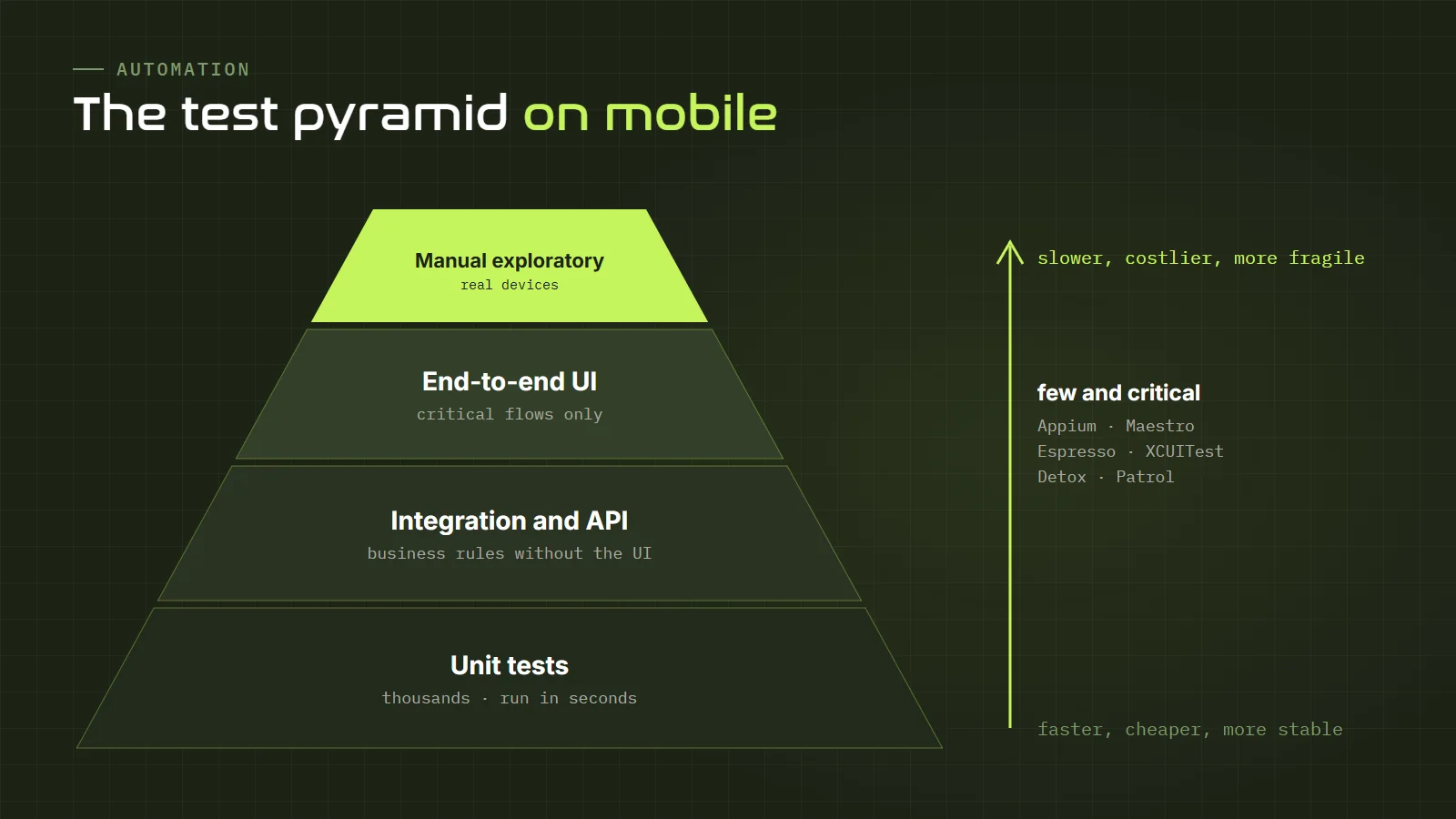
A very common mistake is trying to automate everything through the UI. If a business rule can be validated against the API, validate it there: it's faster, more stable and cheaper to maintain. Save the UI for what really needs the UI: making sure the user can complete the critical flows.
The main tools
| Tool | Platform | What it's for |
|---|---|---|
| Appium | Android and iOS | The open cross-platform standard. It uses the WebDriver protocol, so you can write tests in Java, JavaScript, Python, C# and other languages. Ideal for QA teams that already know Selenium. |
| Espresso | Android | Google's official framework. Very fast and stable because it runs inside the app and syncs with the UI. Written in Kotlin or Java. |
| XCUITest | iOS | Apple's official framework, built into Xcode. Written in Swift. The most reliable option for iOS. |
| Maestro | Android, iOS and web | Flows written in YAML, very easy to read and to get started with. Handles waits automatically. Very useful for teams looking for simplicity. |
| Detox | React Native | Designed for apps built with React Native, with automatic synchronization that reduces flaky tests. |
| integration_test / Patrol | Flutter | Tools from the Flutter ecosystem for end-to-end testing. Patrol adds interaction with native elements, such as permission dialogs. |
For mobile web, tools such as Playwright can emulate devices (screen size, touch events, user agent) and are excellent for validating responsive design and the main flows, although they don't replace testing on real mobile browsers. If you already use Playwright, the k0lmena framework gives you a ready-made base with Cucumber and support for APIs and performance.
How to choose
Some questions that help you decide:
- Who will write and maintain the tests? If it's the development team, native tools (Espresso, XCUITest) fit their work better. If it's QA, Appium or Maestro are usually more accessible.
- What technology is the app built with? Flutter and React Native have specific tools that work better than generic ones.
- Do you need a single suite for Android and iOS? Appium and Maestro allow it; the native tools don't.
- Where will they run? Check that the tool is compatible with the device farm or pipeline you'll use.
Mobile automation best practices
- Ask for stable identifiers. Agree with developers that important elements get an accessibility or test identifier. It's the difference between a stable suite and one that breaks every week. And it improves accessibility along the way.
- Never use fixed waits. Waiting "five seconds" makes tests slow when everything works and flaky when the network is slow. Use condition-based waits.
- Set up data through the API. If a test needs a user with a pending order, create it with an API call before the test, not by clicking through the UI.
- Keep tests independent. Each test should be able to run on its own and in any order.
- Save evidence. Screenshots, video and logs for every failure. On mobile, reproducing a failure can be very hard without them.
- Run in parallel. Mobile tests are slow; parallelizing across several emulators or devices is what makes them viable in the pipeline.
And a special mention for artificial intelligence: AI agents can already explore a mobile app, interpret its screens and run flows from natural-language instructions. If you're interested, in the article on agentic QA I explain how they work, what they can do today and what their risks are.
Everyday tools
Beyond automation, there's a set of tools every mobile QA ends up using daily. You don't need to master them all from day one, but it's worth knowing they exist.
On the Android side
- Android Studio: includes the emulator, the layout inspector and the performance profilers (CPU, memory, network, battery). Even if you don't code, it's useful for creating emulators of different versions and sizes.
- adb (Android Debug Bridge): a command-line tool for talking to the device. With it you can install apps, take screenshots, record the screen, change settings and, above all, get the system logs with
adb logcat. - Developer options: a hidden menu on Android phones (enabled by tapping the build number several times) that lets you show touches on screen, limit background processes, destroy activities when you leave them and much more. Ideal for finding lifecycle bugs.
On the iOS side
- Xcode: comes with the iOS simulator and the Instruments tool for measuring performance, memory and energy usage. It only runs on a Mac.
- Console: the macOS Console app lets you view the logs of an iPhone connected by cable.
- Screen recording: the iPhone itself can record the screen from Control Center, which is very handy for documenting bugs.
Network proxies
Tools such as Charles Proxy, Proxyman, mitmproxy or HTTP Toolkit let you see every call the app makes to the server, with responses and timings. They also let you modify responses to trigger errors, or simulate a slow network. For a QA it's an incredibly valuable tool: often the bug isn't in the app but in what the server returns, and with a proxy you see it in seconds. To understand what you're looking at, keep our HTTP status code reference handy.
Crash monitoring
Tools such as Firebase Crashlytics or Sentry record the crashes and errors real users run into, with device information, the version and the exact point in the code. Reviewing them after each release is a key Shift-Right practice: you hear about problems before the negative reviews arrive.
Builds, betas and app stores
On mobile, getting the right version of the app to test is already part of the job. It's worth knowing how test builds are distributed:
- Android: apps can be installed directly from an APK file, or distributed to testers through Google Play's testing tracks (internal, closed and open testing) or Firebase App Distribution.
- iOS: installation is more restricted. The usual route is TestFlight, Apple's platform for distributing betas to internal and external testers.
Some things worth checking at this stage:
- Always know which build you're testing. Version number, build number and environment (development, QA, staging, production). A bug reported against the wrong build is time wasted for everyone.
- Test the build that will actually ship. Debug builds can behave differently from release builds, for example because of compiler optimizations or security settings.
- Review the store listing. Screenshots, description, declared permissions, age rating. It's part of the product too.
- Know the store rules. Apple and Google have review policies, and an app can be rejected for reasons QA could have caught earlier: broken links, features that don't work, permission requests without justification, no option to delete the account.
- Use staged rollouts. Both stores let you release a version to a percentage of users first and monitor before reaching everyone. It's an excellent safety net.
How to report a mobile bug
A mobile bug report needs more context than a web one, because the same bug can appear on one device and not on another. If the development team can't reproduce it, the bug ends up in limbo. These are the details you can't leave out:
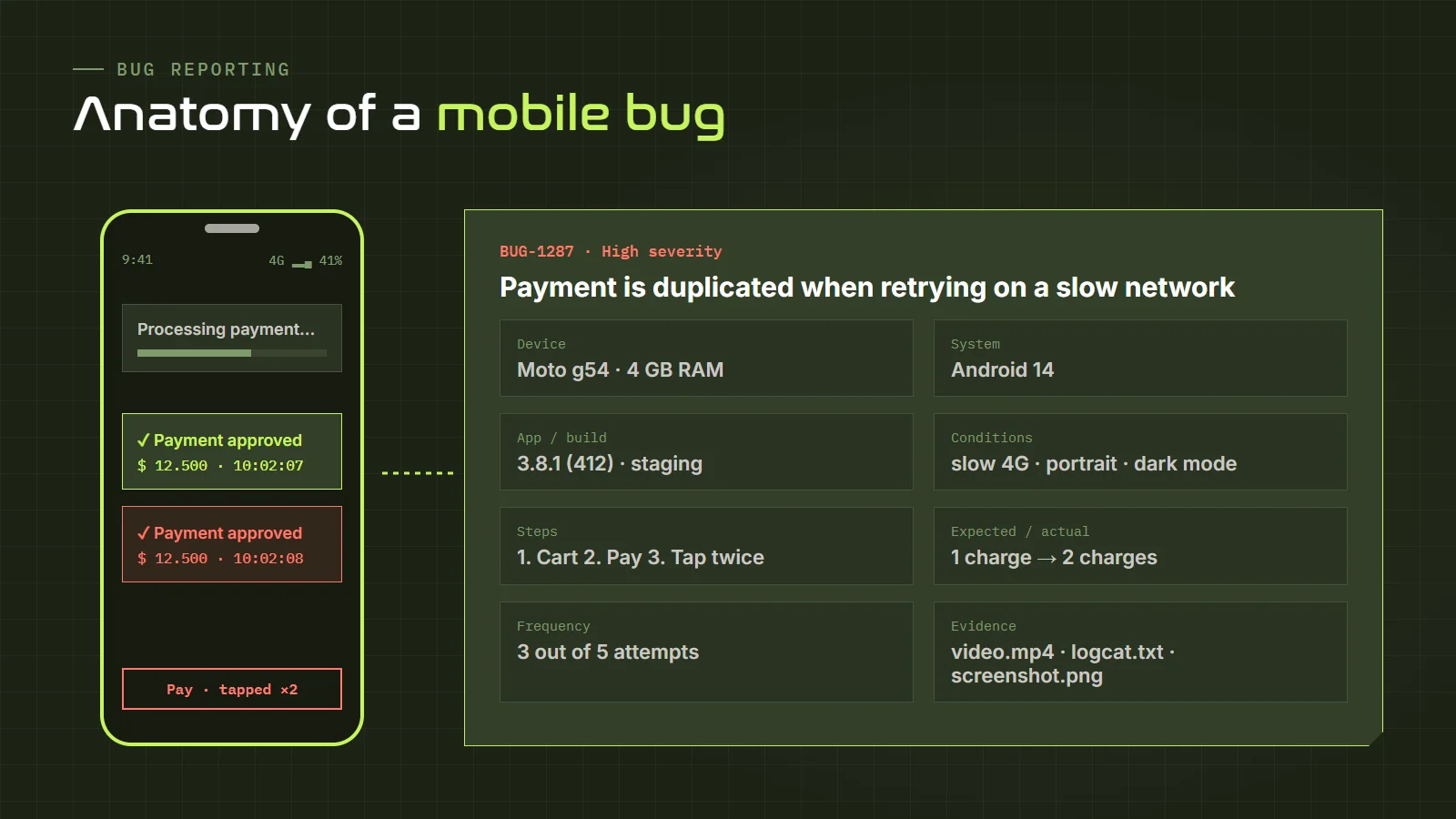
- Device: exact brand and model.
- Operating system: platform and exact version.
- App version and build: plus the environment it was pointing to.
- Conditions: network type, orientation, language, dark mode, battery level or any other relevant condition.
- Steps to reproduce: clear, numbered and from a known starting point.
- Expected result and actual result.
- Frequency: does it always happen, sometimes, only once? Intermittent bugs are common on mobile and it's important to say so.
- Evidence: on mobile, a screen recording is worth a thousand words. Add screenshots and, if it's a crash, the device logs.
- Scope: if you tried it on other devices, say where it happens and where it doesn't. That information helps enormously in finding the cause.
If you want a ready-to-use format, QARMY has a free bug report template (in Spanish) that you can adapt by adding the mobile-specific fields.
Common mobile testing mistakes
These are the mistakes I see most often in teams that are just getting started with mobile. If you avoid them, you're already one step ahead:
- Testing only on your own phone. Your phone is probably newer and more powerful than that of many of your users. What works fine on your device says little about the real experience.
- Testing only on emulators. They're hugely useful, but they don't catch performance problems, hardware issues or manufacturer customizations.
- Always testing on Wi-Fi. The office has a fast, stable network; the street doesn't.
- Forgetting about updates. Testing only clean installs and never the update from the previous version, which is what most users do.
- Ignoring interruptions and the lifecycle. They're one of the biggest sources of bugs and one of the least tested.
- Leaving accessibility for the end. When it's left until the last minute, it almost never gets done. And fixing it later costs much more.
- Automating everything through the UI. It ends in slow, fragile suites that are expensive to maintain. The UI is for critical flows.
- Not looking at what happens in production. Crash reports and store reviews are an incredibly valuable source of information about what testing didn't find.
How to start practicing
If you want to get into mobile testing, here's a six-step path:
- Strengthen your testing fundamentals. Test design, test techniques, bug reporting. Everything you know about testing applies to mobile. Our free QA course from scratch is a good starting point.
- Use your own phone as a lab. Pick an app you use often and test it with a QA mindset: rotate the screen, turn on airplane mode, deny permissions, send it to the background in the middle of an operation. You'll be surprised how much you find.
- Install Android Studio and set up emulators. Create two or three devices with different versions and sizes. Learn to install an app, simulate a slow network and change the location.
- Learn to read logs and use a proxy. Try
adb logcatand a tool such as Charles or HTTP Toolkit. They'll change the way you investigate bugs. - Get started with automation. Maestro is an excellent entry point because it's so simple; later you can move on to Appium. There are sample apps built for practice, and in our list of websites to practice testing you'll find resources to get started.
- Formalize what you've learned. If you like certifications, ISTQB's CT-MAT organizes all these topics very well. You can practice with our CT-MAT simulator and review with the ISTQB study material.
Frequently asked questions
Do I need a Mac to test iOS apps?
To use the iOS simulator and Apple tools such as Xcode, yes. For manual testing, an iPhone and access to betas through TestFlight are enough. You can also use real iPhones through cloud device farms, without owning a Mac.
Is testing on emulators enough?
No. Emulators are excellent for development, early functional testing and automation, but they don't reflect real performance, hardware behavior or each manufacturer's customizations. Before shipping, you always need to test on real devices, your own or in the cloud.
Which is better to start automating: Appium or Maestro?
Maestro is simpler to start with and gets you results fast. Appium has a longer track record, a huge community, supports many languages and is in high demand on the job market. A good path is to start with Maestro to understand the concepts and learn Appium afterwards.
Are there jobs in mobile testing?
Yes, plenty. Almost every company has an app or a site that's mostly used from phones, and QA profiles with mobile experience, especially in automation, are in high demand. It's also a specialty that combines very well with API testing, accessibility and performance.
How many devices do I need for my own lab?
It depends on your matrix, but to start with three to five devices covering tier 1 are usually enough: a recent iPhone, a couple of Android phones from different brands and price ranges, and one with an older system version. The rest can be covered with emulators and cloud farms.
Conclusion
Mobile device testing isn't a separate branch of testing; it's the same testing as always, applied to a much more varied and unpredictable context. The techniques, critical thinking and curiosity you use to test any software are still the foundation. What changes is that you have to think about the person using the app on the bus, with a four-year-old phone, the battery at fifteen percent and a signal that comes and goes.
Choose your devices well, based on data; combine emulators, real devices and the cloud; don't forget interruptions, the network, accessibility and updates; automate with judgment; and report bugs with all the context the team needs. With that, you'll be protecting what really matters: that the app works for whoever is using it, wherever they are.
If you want to keep learning, join the QARMY WhatsApp channel, where we share news and resources and announce upcoming courses. And if you have experience testing mobile apps, tell us about it: you always learn something new from other people's bugs.